

How to Use Aspect-Ratio Filters in the Mockupanda API to Automatically Match Templates to Your Dimensions at Scale
If you've ever run a batch mockup job and come back to find half your designs stretched, squished, or awkwardly letterboxed inside the wrong template frame, you already know the problem. Aspect-ratio mismatches are one of the most common and quietly expensive mistakes in programmatic mockup generation. They look unprofessional, they waste credits, and at scale they can mean hundreds of bad listing images you have to regenerate.
The Mockupanda API has built-in filters designed specifically to solve this. The aspect-ratio filter and artwork-matching filter let you query the template library intelligently so that every design gets paired with a compatible frame automatically. Once you understand how to combine these parameters, you can build a pipeline that handles any incoming design dimensions without a human in the loop.
This guide is for developers and technically confident sellers who are generating mockups via the REST API. We'll go deep on the filter mechanics, show you real request structures, and walk through how to architect a workflow that scales cleanly.
Why Aspect Ratio Matters More Than You Think
The visual cost of a mismatch
A mockup template is built around a specific frame shape. A portrait poster frame is usually around 2:3. A square art print sits at 1:1. A horizontal landscape piece might be 4:3 or 16:9. When you drop a design into a frame that doesn't match its proportions, one of a few things happens depending on how the renderer handles it: the design gets stretched to fill the frame and loses its correct proportions, it gets cropped and loses content at the edges, or it gets padded with empty space and looks unfinished.
None of those outcomes are acceptable for a listing image. On Etsy especially, your thumbnail is doing serious conversion work. A slightly distorted or awkwardly padded image signals low quality before a buyer even clicks through.
The problem compounds at scale
When you're running one or two designs through a tool manually, you can see the mismatch immediately and fix it. When you're processing 50, 200, or 500 designs through an automated pipeline, a logic error in your template selection produces 200 bad mockups before you notice. Regeneration costs credits, costs time, and delays your listings going live.
Building aspect-ratio awareness into your API requests from the start is not a nice-to-have. It is the difference between a workflow that runs reliably and one that needs constant babysitting.
Takeaway: Before writing any mockup generation code, define how you will handle design dimensions. Make aspect-ratio filtering a first-class part of your template selection logic, not an afterthought.
How the Mockupanda API Template Endpoint Works
The GET /templates endpoint
The foundation of any smart template selection workflow is the GET /templates endpoint at https://www.mockupanda.com/api/v1/templates. This endpoint returns the full library of available templates and accepts several query parameters that let you narrow results.
The basic request with no filters returns all templates. The documented sample shows the library contains over 120 templates, and that number grows. Without filtering, you'd have to build your own matching logic on top of a raw list, which is fragile and hard to maintain as the library expands.
The endpoint supports hybrid semantic search via the q parameter, which lets you combine a text description with structured filters. This is a meaningful feature because it means you don't have to choose between keyword matching and structured filtering. You can do both in one request.
The aspect-ratio filter parameter
The aspect-ratio filter lets you pass the dimensions of your artwork and get back only templates whose frames are compatible with those proportions. Instead of filtering a giant list yourself, you let the API do the matching server-side.
In practice, this means your workflow can look like this: receive a design file, read its pixel dimensions, calculate its aspect ratio, pass that ratio to the template endpoint, and receive a filtered list of compatible templates. You then feed those template IDs into your mockup generation request.
The artwork-matching filter takes this a step further. Rather than calculating ratios manually, you can pass artwork dimensions directly and let the API figure out what matches. This is particularly useful when you're dealing with a wide variety of incoming file sizes and don't want to maintain your own lookup table of which ratios map to which templates.
Takeaway: Use GET /templates with aspect-ratio and artwork-matching parameters as the first step in every automated pipeline. Never hardcode a list of template IDs if your designs vary in proportion.

Building the Aspect-Ratio Filtering Request
Calculating the right values to pass
Before you can filter by aspect ratio, you need to know your design's ratio. This is straightforward: divide the width in pixels by the height in pixels and round to two decimal places. A 2400x3600 design gives you 0.67, which corresponds to the classic 2:3 portrait ratio. A 3600x3600 gives you 1.0, which is square. A 4800x3600 gives you 1.33, which is the 4:3 landscape ratio.
Most image processing libraries give you pixel dimensions trivially. In Python, Pillow's Image.open(file).size returns a (width, height) tuple. In Node.js, the sharp library does the same. You can also pull dimensions from file metadata if you're storing designs in a system that captures it.
Once you have the ratio, you pass it as a filter parameter to GET /templates. The API returns templates whose frame proportions are compatible with that ratio, removing templates that would distort your design.
Structuring your template discovery request
Here is what a filtered template discovery request looks like in practice. The exact parameter names should be confirmed against the current API docs at the time of implementation, but the logical structure is:
import requests

API_KEY = "your_api_key_here"
BASE_URL = "https://www.mockupanda.com/api/v1"

def get_matching_templates(width_px, height_px, search_query=None):
    ratio = round(width_px / height_px, 2)
    params = {
        "aspect_ratio": f"{width_px}:{height_px}",
    }
    if search_query:
        params["q"] = search_query

    headers = {"Authorization": f"Bearer {API_KEY}"}
    response = requests.get(f"{BASE_URL}/templates", params=params, headers=headers)
    response.raise_for_status()
    return response.json()["data"]

# Example: portrait design
templates = get_matching_templates(2400, 3600, q="poster wall art")
template_ids = [t["id"] for t in templates]
Combining the aspect-ratio filter with the q semantic search parameter is where the real power comes in. A portrait print and a portrait photograph have the same ratio, but the right mockup context is different. Adding q="minimalist poster bedroom" narrows the results to templates that are both the right shape and the right aesthetic.
Handling edge cases and unusual ratios
Not every design has a standard ratio. Panoramic prints, unusual square crops, and custom sizes create ratios that don't map cleanly to a standard template. You need a fallback strategy.
The simplest approach is to define a set of canonical ratios you support (1:1, 2:3, 3:2, 4:3, 3:4, 16:9, etc.) and snap incoming designs to the nearest canonical ratio before querying the API. You can do this with a small helper function that finds the minimum distance between the calculated ratio and your list of supported ones.
If a design is genuinely unusual and no close match exists, surface it for manual review rather than letting it silently generate a bad mockup. A simple flag in your pipeline output is enough: "ratio_match": "exact", "ratio_match": "nearest", or "ratio_match": "manual_review".
Takeaway: Always calculate and validate your design's aspect ratio before hitting the template endpoint. Build a canonical ratio mapping and a fallback flag so nothing slips through silently.
Generating Mockups at Scale with Matched Templates
Batching your generation requests
Once you have a list of compatible template IDs from the discovery step, you pass them to the POST /mockups/generate endpoint. The API supports batch mode through the template_ids parameter, which accepts up to 12 template IDs per request.
For a typical product launch, you might want 6 to 12 mockup variations per design. That fits neatly in a single batch request. For larger sets, you split into sequential requests and aggregate the results.
Here is a minimal generation request structure:
const response = await fetch('https://www.mockupanda.com/api/v1/mockups/generate', {
  method: 'POST',
  headers: {
    'Authorization': `Bearer ${API_KEY}`,
    'Content-Type': 'application/json'
  },
  body: JSON.stringify({
    artwork_url: 'https://your-cdn.com/designs/design-001.png',
    template_ids: ['tmpl_abc123', 'tmpl_def456', 'tmpl_ghi789']
  })
});

const { mockups } = await response.json();
The API renders in real time. Simple templates return in 1 to 2 seconds, more complex scenes in 2 to 4 seconds, and high-resolution 4000px outputs in 3 to 5 seconds. At a rate limit of 100 requests per minute, you can move through a large catalog quickly without throttling.
Using Sets to stabilize your template selection
If your catalog consistently uses a defined collection of templates, consider using Mockupanda's Sets feature rather than re-querying the template library on every run. A Set is a saved, named, ordered group of templates that you can retrieve via its set_id through the GET /sets/{id} endpoint.
The workflow becomes: create a Set in the dashboard for each canonical ratio you support (a "Portrait Posters" set, a "Square Art" set, a "Landscape Prints" set), then route each incoming design to the right set based on its calculated ratio. This decouples your template curation from your generation code, so a designer can update the template selection without touching the pipeline logic.
You can also render an entire Set via the API by passing the set_id in your generation request, which removes the step of manually listing template IDs.
Credit management at scale
The API billing model is simple: 1 credit equals 1 mockup, and 1 credit costs $0.01. Credits never expire and failed requests cost zero credits. At that rate, 1,000 mockups cost $10 and 10,000 cost $100.
For a scaled pipeline, instrument your generation loop to log credit consumption alongside design IDs and template IDs. This lets you audit exactly where credits went, identify designs that generated more retries than expected, and project costs as your catalog grows.
You can check your current wallet balance via GET /billing/wallet. Build this check into the start of your pipeline run so you can catch a low balance before a long job fails partway through.
Takeaway: Use Sets to manage template collections by ratio category, batch your generation requests up to the 12-template limit, and always check your wallet balance before a large batch run.

Putting It Together: A Full Pipeline Architecture
The five-stage pipeline pattern
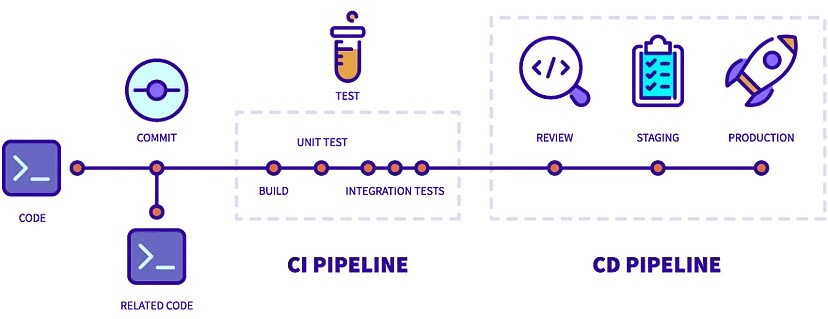
A robust aspect-ratio-aware mockup generation pipeline has five stages.
Stage one is ingestion. A new design file arrives, either uploaded manually, dropped into a watched folder, or pushed via webhook from your design tool. The pipeline reads the file's pixel dimensions.
Stage two is ratio classification. The pipeline calculates the aspect ratio, maps it to a canonical ratio from your supported list, and flags any designs that fall outside acceptable tolerances for manual review.
Stage three is template discovery. For each canonical ratio, the pipeline queries GET /templates with the appropriate filter and optionally a semantic search term. Results are cached per ratio category so you're not hitting the endpoint on every single design.
Stage four is generation. The pipeline calls POST /mockups/generate with the artwork URL and matched template IDs, batching up to 12 per request. Results are stored with their design ID and template ID for traceability.
Stage five is delivery. Generated mockup URLs are written to a database, exported to a spreadsheet, or pushed to your listing tool, ready for upload to Etsy or Shopify.
Caching template discovery results
The template library doesn't change by the second. Querying GET /templates with the same parameters for every design in a 500-item batch is inefficient. Cache your filtered template lists by ratio category (and search term, if you're using q) for a reasonable TTL, something like 24 hours, and reuse the cached result across the run.
This also means your pipeline can start immediately without a cold-start delay for every design. The first design in each ratio category pays the discovery cost; every subsequent one in the same category uses cached results.
Error handling and retry logic
Network failures happen. A generation request might time out on a complex template at 4000px resolution. Build retry logic with exponential backoff into your generation stage, and make sure failed requests don't consume credits (the API guarantees this, but your code should still log them separately so you can investigate patterns).
If a ratio-matched template consistently fails, remove it from your cached template list for that run and flag it for investigation. A single bad template in a set shouldn't block the rest of your catalog.
Takeaway: Cache template discovery results by ratio category, build retry logic into your generation stage, and structure your pipeline so a failure in one design never blocks the rest of the batch.
Common Mistakes and How to Avoid Them
Hardcoding template IDs
The most common mistake developers make is hardcoding a fixed list of template IDs into their generation script. This feels fast at first. It breaks the moment the template library is updated, a template is deprecated, or you want to add a new template category.
Use the GET /templates endpoint with filters, or use Sets managed in the Mockupanda dashboard. Both approaches externalize the template selection logic so your code doesn't have to change every time your creative direction does.
Ignoring multi-frame templates
Some templates in the library are multi-frame, meaning they support diptych or triptych layouts where multiple designs appear in a single scene. These templates use the artwork_urls parameter (plural) rather than a single artwork URL.
If your pipeline sends a single artwork_url to a multi-frame template, you'll get an error or an unexpected result. When you retrieve templates from the discovery step, check for multi-frame flags in the response and route those templates to a separate generation path that constructs the artwork_urls array correctly.
Not setting output width intentionally
The default output width is 2000px, which is fine for most listing images. But if you're generating for a platform that requires larger images, or if you want maximum quality for print-on-demand proofs, you can set the output width up to 4000px. Just account for the longer render time (3 to 5 seconds at 4000px) in your timeout settings.
Conversely, if you're generating preview thumbnails and don't need full resolution, a smaller output width means faster renders and lower storage costs. Set it explicitly rather than relying on defaults, so your pipeline behavior is deterministic across API version updates.
Takeaway: Never hardcode template IDs, handle multi-frame templates as a separate case, and always set your output width explicitly based on the use case rather than relying on defaults.
Scaling to Hundreds of Designs Without Losing Control
Tracking everything with a design manifest
At scale, the output of your pipeline is only as useful as your ability to trace which mockup came from which design and which template. Build a manifest file or database table that records, for every generated mockup: the source design ID, the design's pixel dimensions and calculated ratio, the template ID used, the generation timestamp, the output URL, and the credit cost.
This manifest becomes your audit trail. If a mockup looks wrong, you can trace it back to the exact template and design that produced it. If you want to regenerate your entire catalog with a new set of templates, you can query the manifest to find all designs in a given ratio category and re-run only those.
Using the API for ongoing catalog maintenance
A mockup pipeline isn't a one-time build. Listings need to be refreshed with new template styles, seasonal scenes, or updated branding. Because your pipeline is built around dynamic template discovery rather than hardcoded IDs, refreshing your catalog is a matter of updating your Sets in the dashboard or changing your q search terms, then re-running the pipeline against your design manifest.
This is the compounding advantage of building the infrastructure correctly from the start. The first run takes more architectural thought. Every subsequent run is nearly free in terms of engineering effort.
Takeaway: Maintain a design manifest from day one. It is the foundation for reliable catalog maintenance, debugging, and scaling your mockup operation without starting from scratch each time.
Building aspect-ratio filtering into your Mockupanda API workflow is one of those foundational decisions that feels like extra work upfront and saves you an enormous amount of pain at scale. The filters exist precisely so you don't have to maintain brittle mapping tables or manually review every output image. Use them, combine them with semantic search and Sets, and you'll have a pipeline that handles a growing catalog of designs with minimal intervention and zero stretched mockups.
Keep reading

How to Upload a Custom PSD Smart Object Template and Expose It as an API-Renderable Resource in Your POD Workflow

How to Manage Multiple Mockupanda API Keys Across Dev, Staging, and Production Environments Without Leaking Credentials
